Getting Started
How to create a matrix — Portrait Documentation
In this documentation page we will see together how to create a correlation matrix with Portrait capable of turning on a traffic light. This way, you will be able to activate an indicator that turns on every time a user has certain values associated with their psychometric traits.
Start by clicking on the button as shown in the figure:
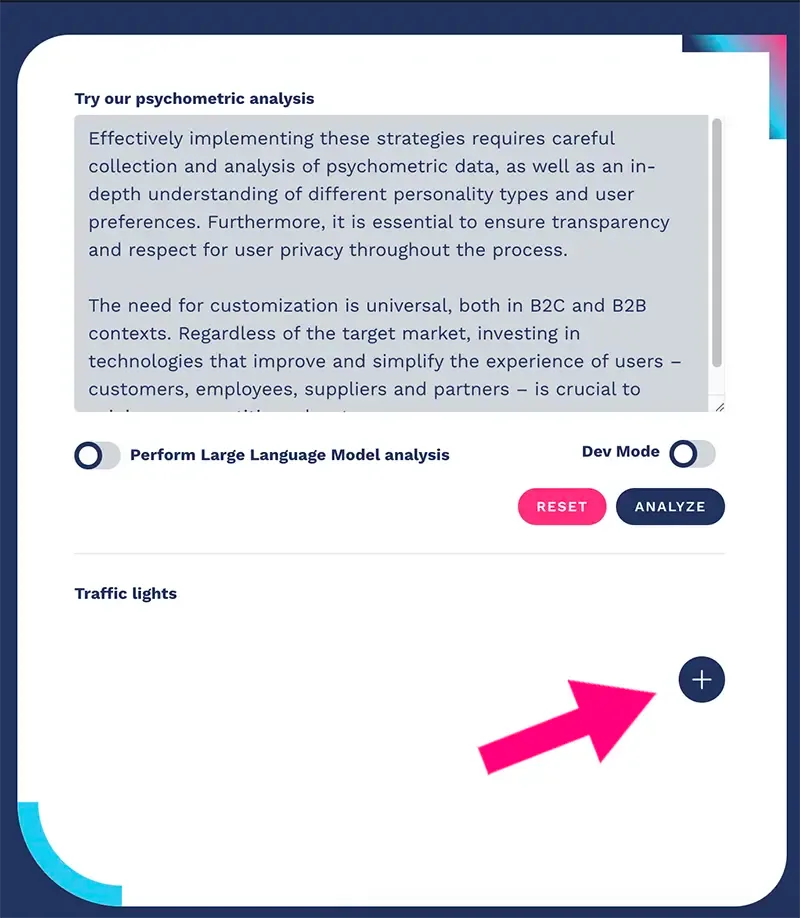
After clicking on the button, a window will open where you can start entering your matrix's data, as shown in the figure:
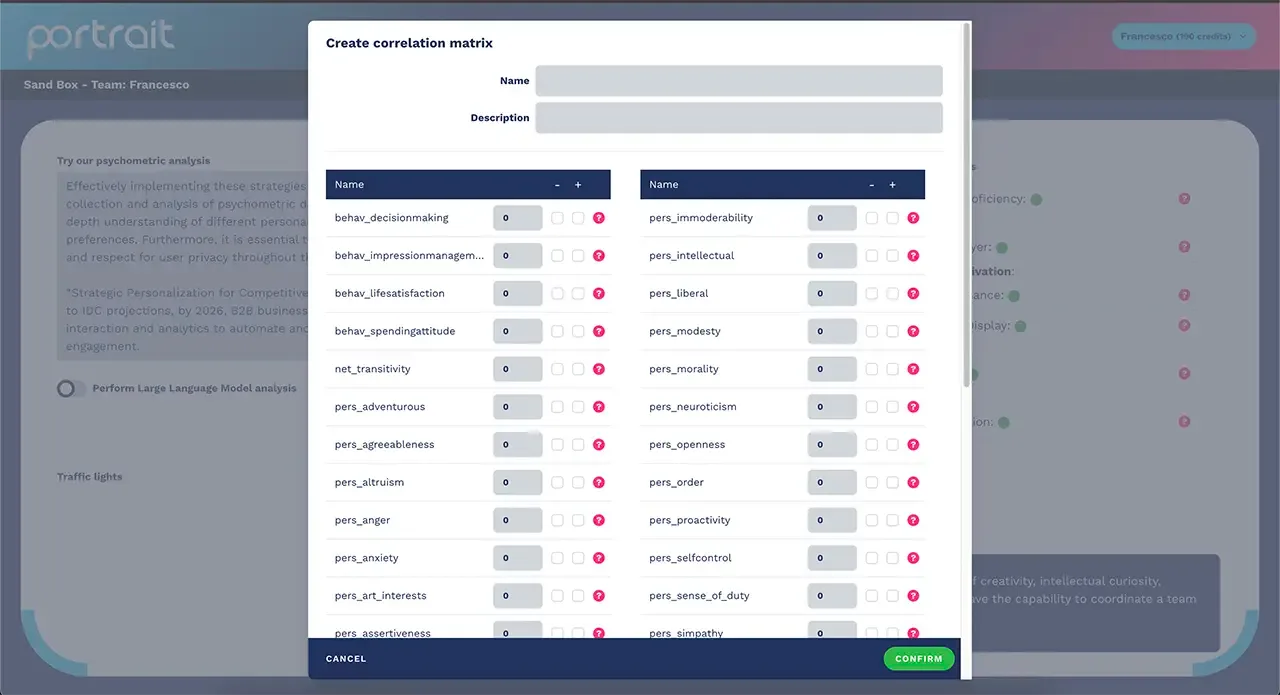
Start by entering the name and description of your matrix, as shown in the figure below:
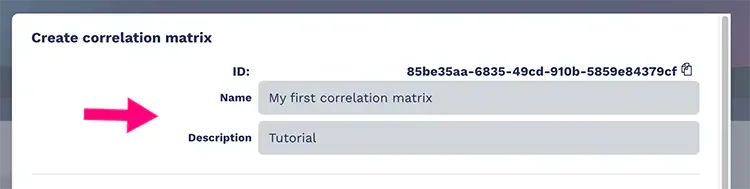
Next, enter the value of the psychometric traits. Psychometric trait values can be positive or negative.
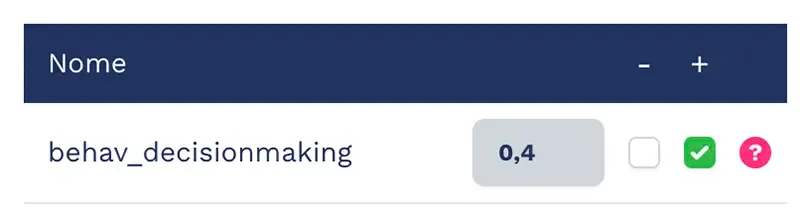
If a trait in the correlation matrix must be positive, click on the + button and enter the value, as shown in the figure:
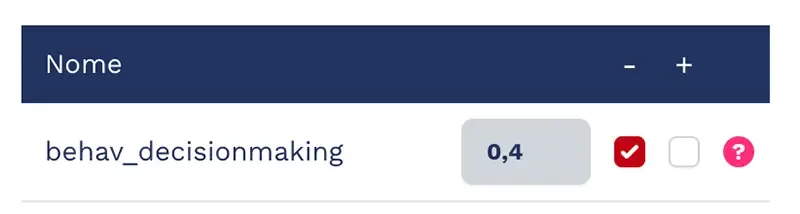
If a trait in the correlation matrix must be negative, click on the – button and enter the value, as shown in the figure:
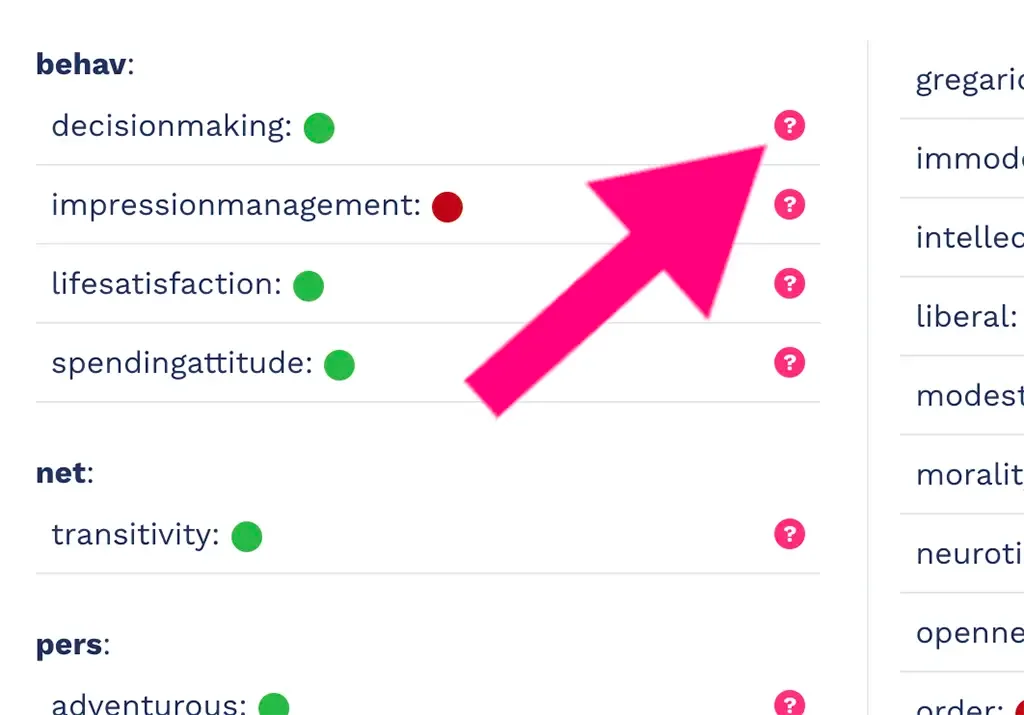
Remember that you can use the question mark icon to get an immediate description of each psychometric trait, as shown in the image below:
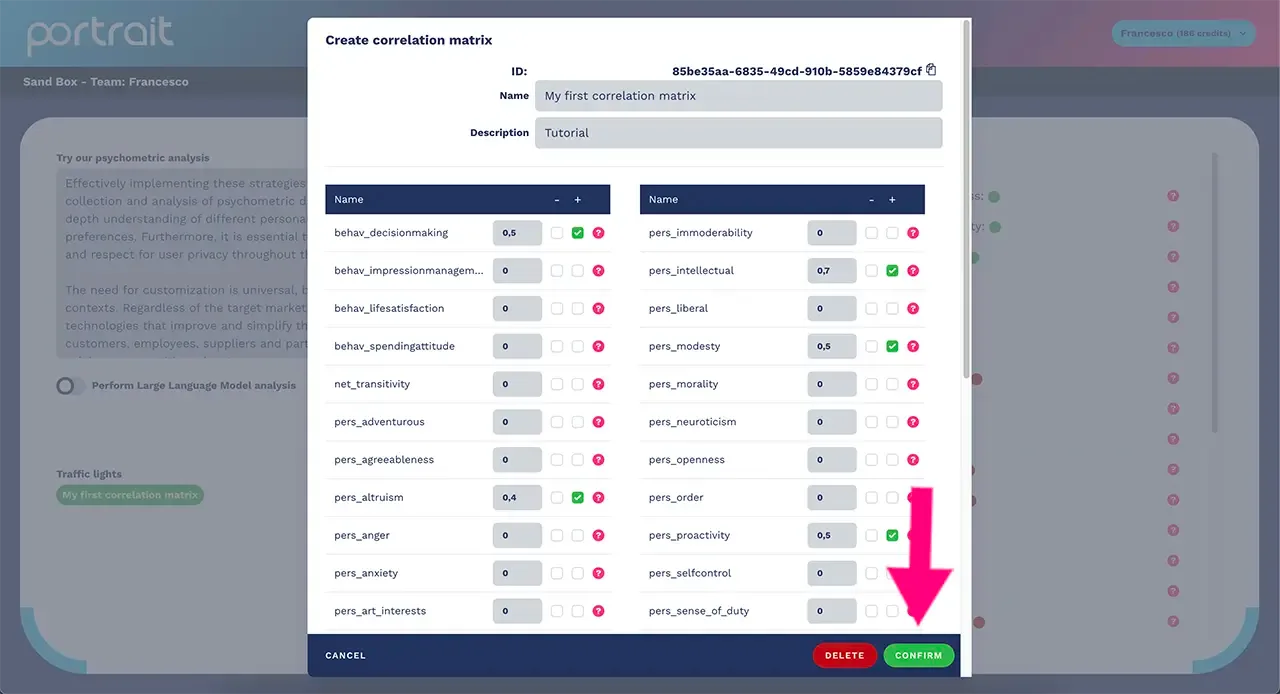
To finish the correlation matrix creation process, click on the "confirm" button as shown in the figure:
Now you know how to create a correlation matrix with Portrait technology.
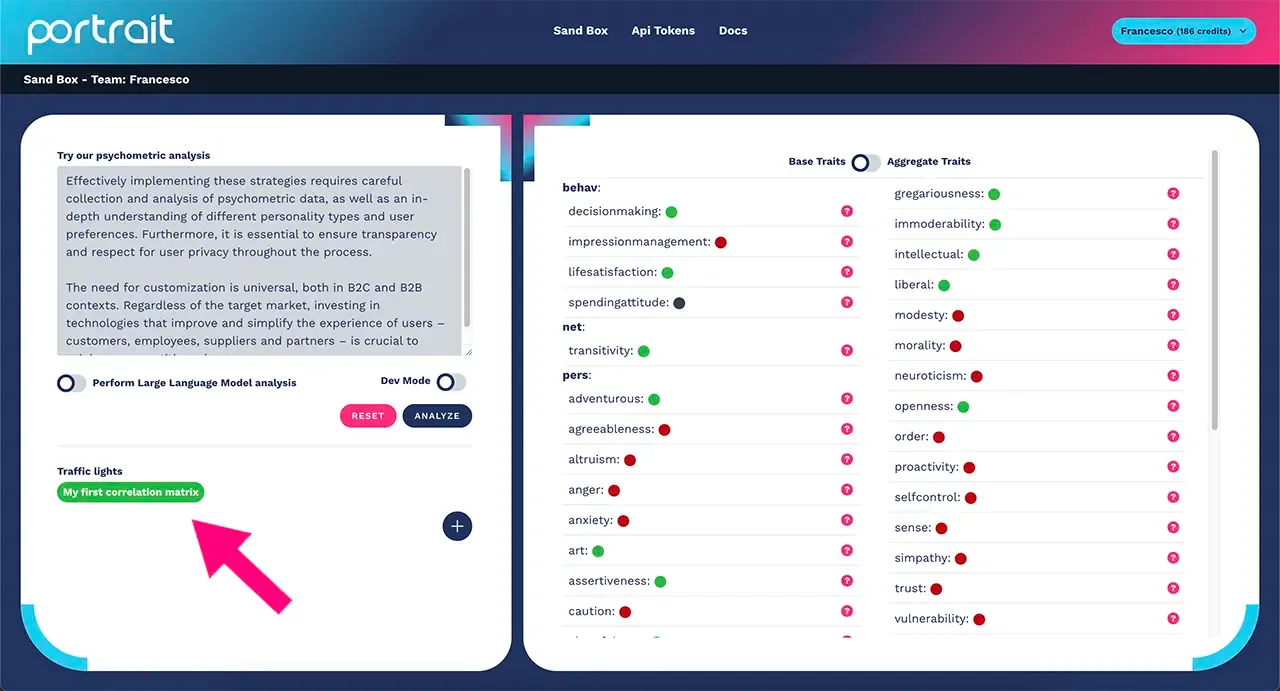
From this moment on, every time analyzed users show the positive psychometric trait you configured, you will be alerted with the traffic light turning green: