Getting Started
How to use Portrait — Portrait Documentation
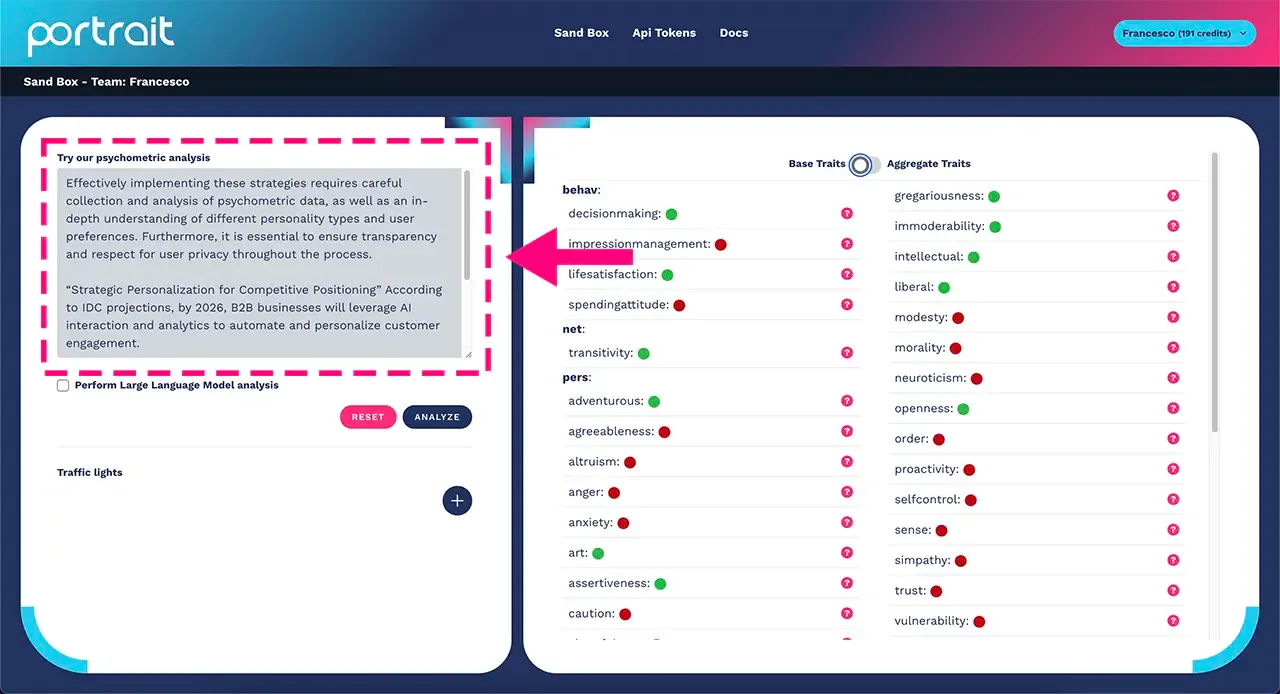
To start using Portrait's psychometric profiling, enter some text into the sandbox as shown in the figure below (remember that at least 300 characters are needed for an optimal profiling result).
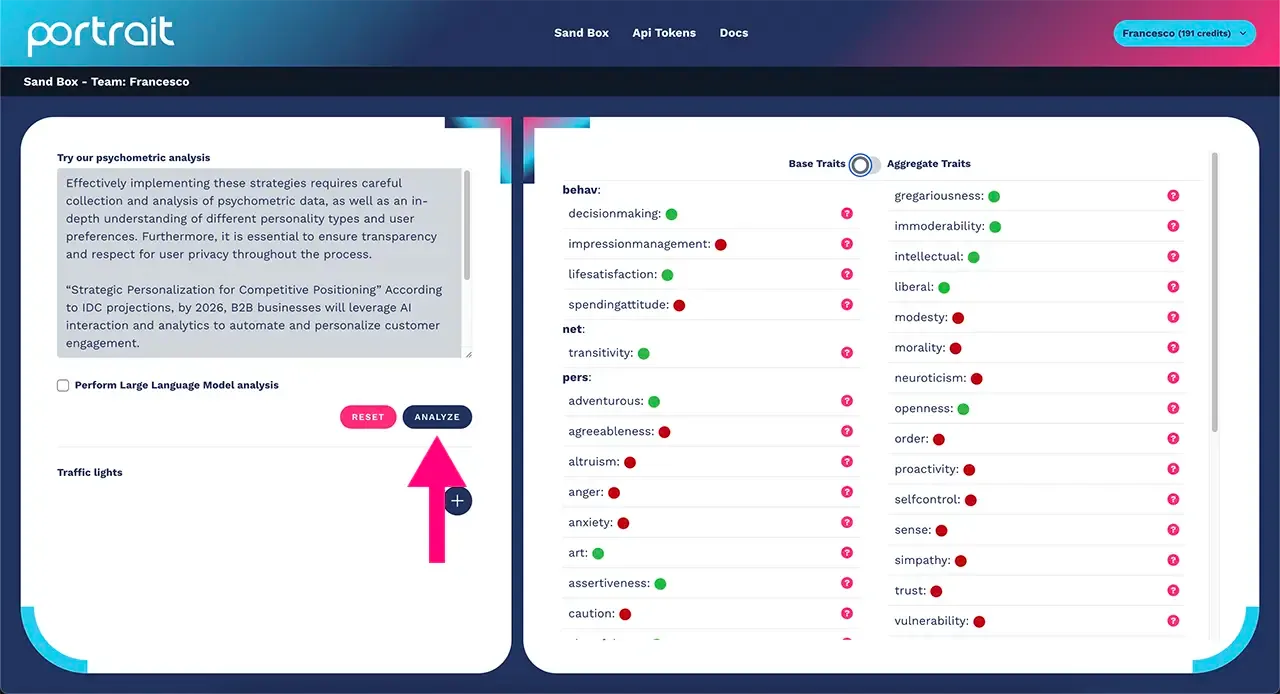
Click on the "analyze" button and wait for the request to complete (it only takes a few seconds).
Once the loading is complete, the psychometric traits that emerged from the text you entered in the sandbox will be shown, as indicated in the figure:
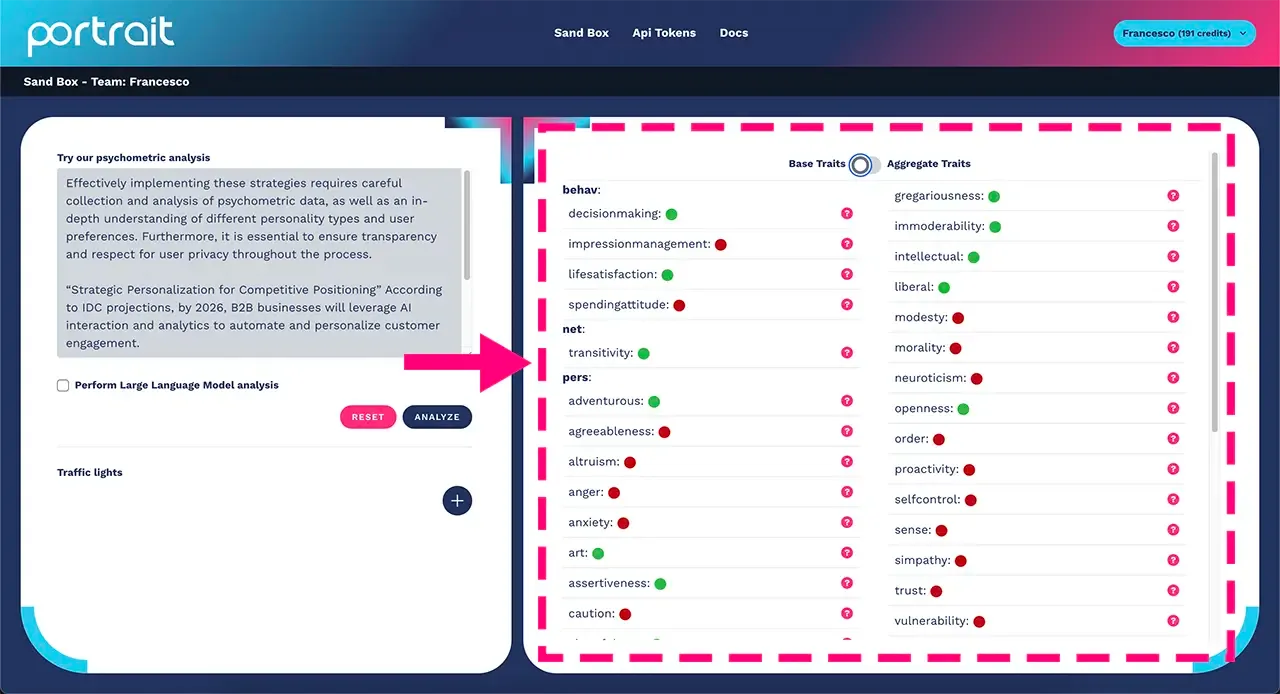
Traits marked with a green dot indicate that the trait is present in the analyzed user, while a red dot indicates that the trait is not detected.
To make the most of psychometric profiling, hover over the question mark icon to get a quick description of the psychometric traits, as shown in the figure:
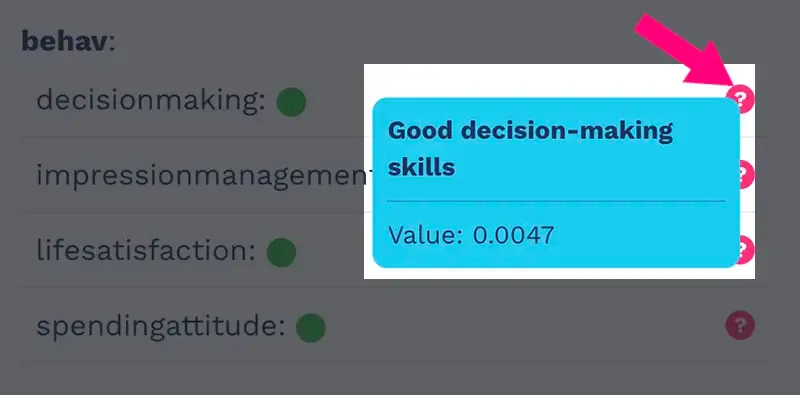
Each psychometric trait is marked by a green or red dot (indicating whether it is present or not), a short description (in the image above, Good decision-making skills) and a value (in the example examined, 0.0047).
This value is important for creating correlation matrices and traffic lights, as we will see in the next chapters of this documentation.
NB: check the documentation chapter dedicated to basic psychometric traits if you need the full description of all the psychometric traits detected by Portrait.