User profile
Access Your Portrait User Profile — Portrait Documentation
To access your Portrait user profile for psychometric profiling, you need to follow a few simple steps.
Be sure to carefully follow the instructions described below.
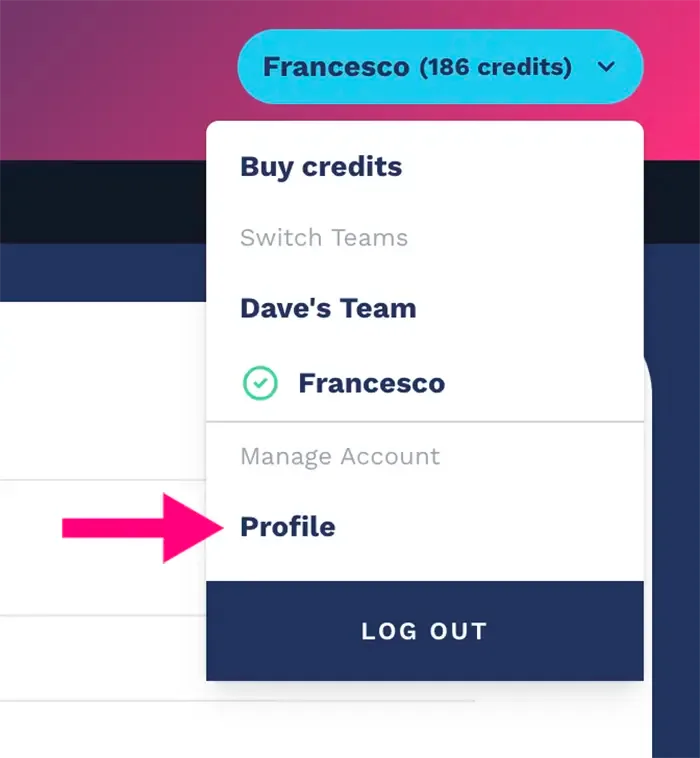
First, locate your profile icon positioned in the top right corner of the screen. Once located, click on the icon to expand the drop-down menu.

In the drop-down menu, search for and select the user profile option. You will find this option under your username. Once you have selected the user profile option, you will be redirected to a dedicated page where you can access your profile settings.
At this point, the management window for your psychometric profiling user profile will open, where you can change your name, email, language and password, enable two-factor authentication, view active browser sessions, delete your account, buy new credits, and manage billing and your teams.
NB: when you enter the profile section you can manage your Athics account information (the company that developed Portrait). With the same Athics account you can also access all the settings of the conversational AI platform crafter.ai, also developed by Athics.
Visit the Athics account section of this documentation for more information, or contact us if you have any doubts or questions.