User profile
Create a New Portrait Team — Portrait Documentation
To create a new Team for psychometric profiling, follow the steps described below.
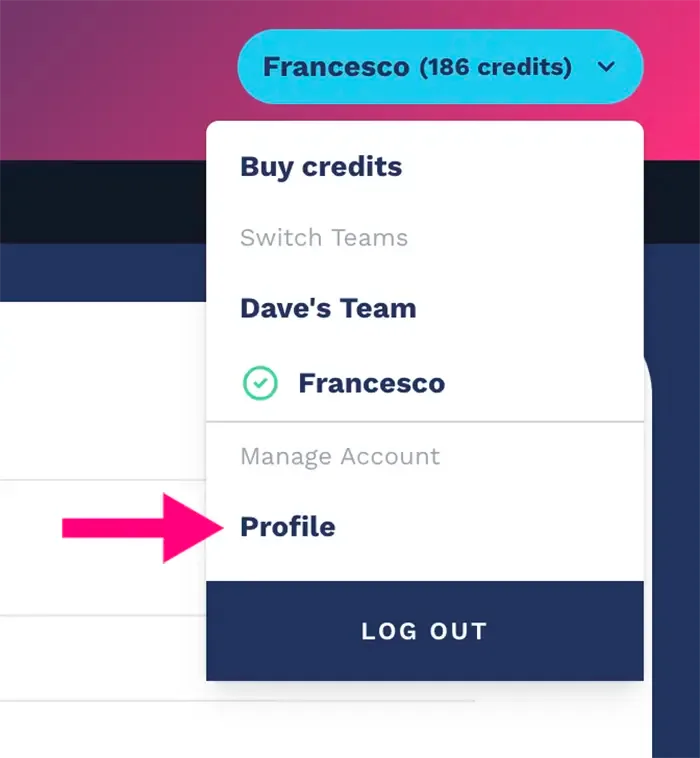
To access your profile, click on the icon located in the top right corner of the page (the button with your name and the number of tokens available). There you will find the link to access your personal profile.

To view and manage your personal information, preferences and account settings, and to proceed with creating a new team, you can click on the "Profile" button located in the select that opens in the top right corner of the page, as shown in the screenshot below:
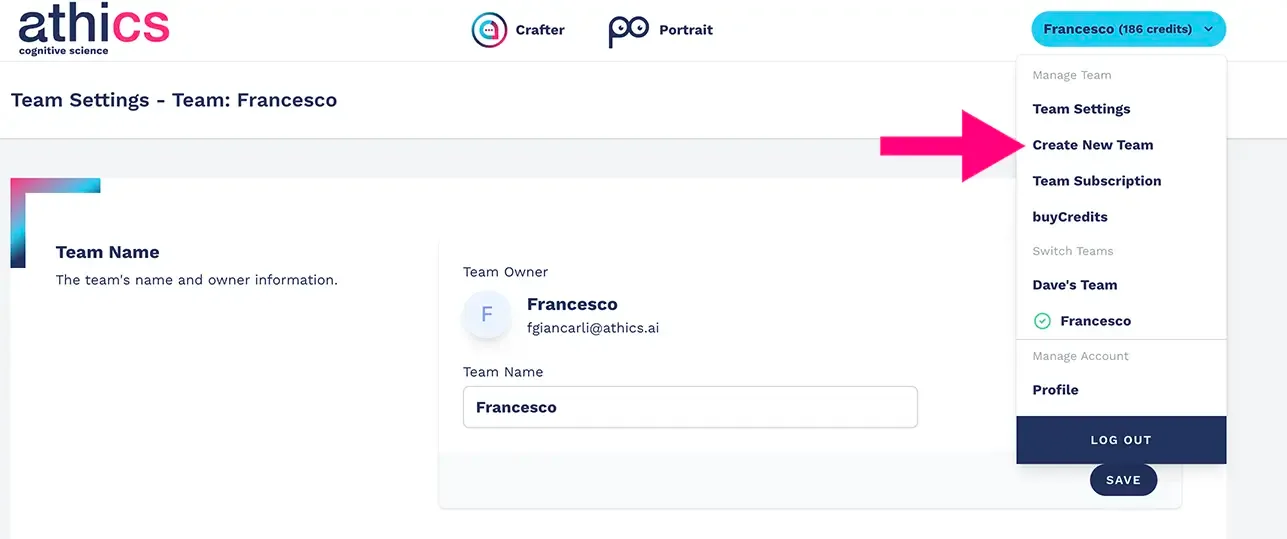
To create a new team on Athics, from your account page, look for the option in the top right menu and select "Create new team". This will let you access the team creation area on the Portrait platform (remember: the team will be created and can be used across the entire Athics ecosystem, including on the crafter.ai conversational AI platform).
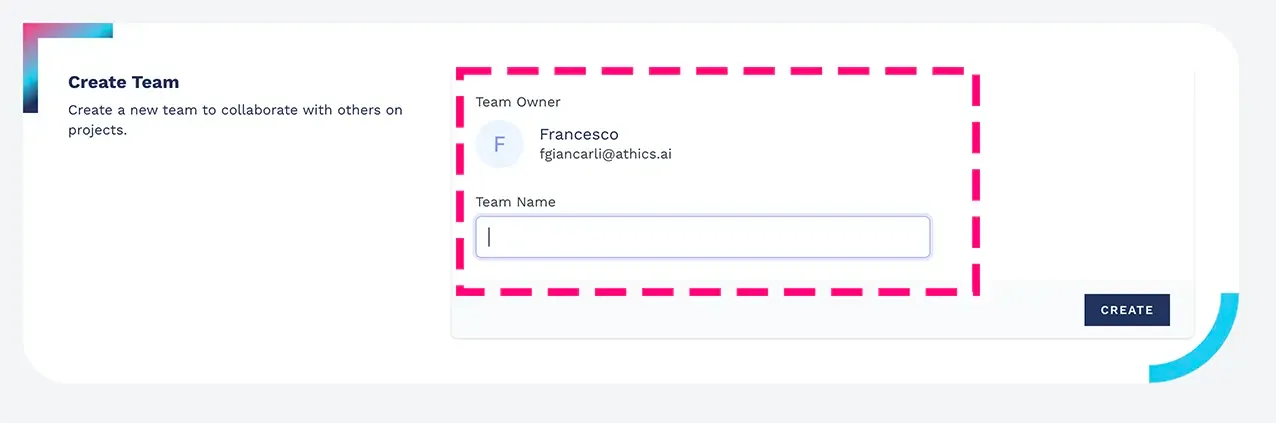
Choose a name that represents the team's identity and press "Create" to start creating the new team, allowing collaboration with other users.
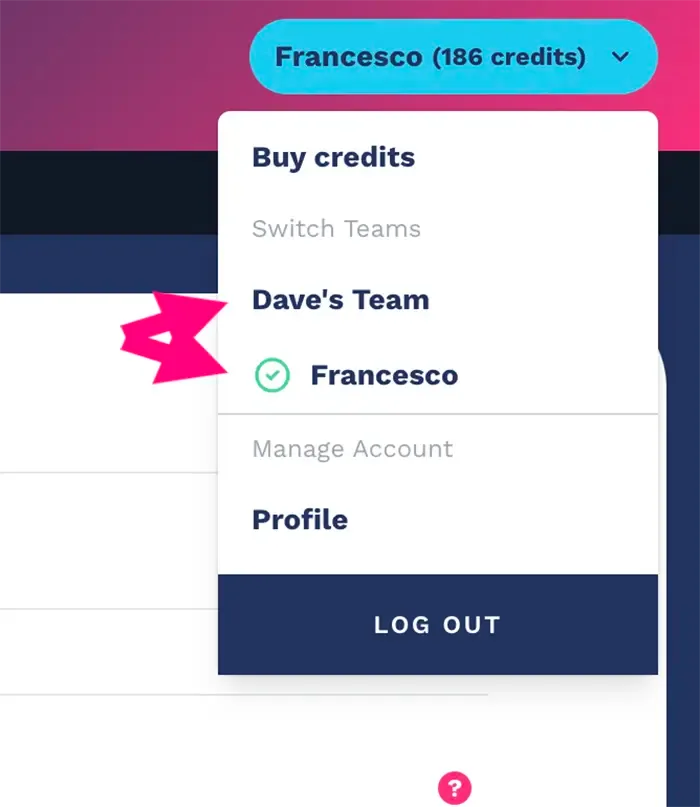
In the latest Portrait update, we have improved the team selection functionality. You can now view your team quickly and easily by selecting from the available options in the top right corner.
This lets you better adapt your work to specific needs, making the team management process more efficient and intuitive, as shown in the image below:
NB: there is no limit to how many new profiling teams you can create.