User profile
Switch Team in Portrait — Portrait Documentation
How do you switch profiling Team? To change your working team using the Portrait platform, you need to follow a few simple steps illustrated in the images below.
First, locate the button in the top right corner of the screen, which generally contains your username. Clicking on this button will open a drop-down menu with several options, as shown in the screenshot:

Choose the team you want to collaborate with by selecting the corresponding option in the selection window that appears after clicking the select, as shown in the screenshot:
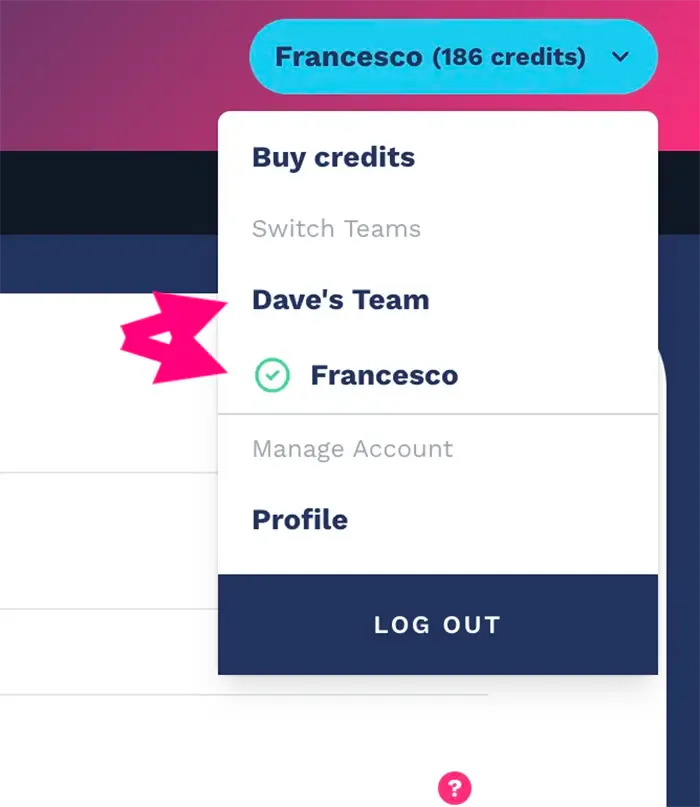
When you use the Portrait platform to select the team you want to collaborate with, you will notice a green checkmark icon, a clear sign that confirms which team you are interacting with.
This simple but effective visualization system eliminates any possibility of confusion, ensuring a clear understanding and correct identification of the team you are currently working with. The presence of this green icon offers reassuring visual confirmation, allowing for error-free navigation and greater efficiency in Portrait's virtual work environment.
Information on switching profiling Team
When you select the desired team name, the platform automatically updates to display the relevant details of that profile.
This data can include information such as the team's last profiling run, the correlation matrices related to their activities, the API keys used and more.
This process simplifies access to and analysis of team-specific data, enabling more efficient and targeted management of business resources and operations.