User profile
Edit Your Portrait User Profile — Portrait Documentation
To edit your Portrait user profile on the platform, simply follow the steps illustrated in the screenshots below.
First, locate and click on your username, found in the top right corner of the interface.

From the select that opens, click on "profile":
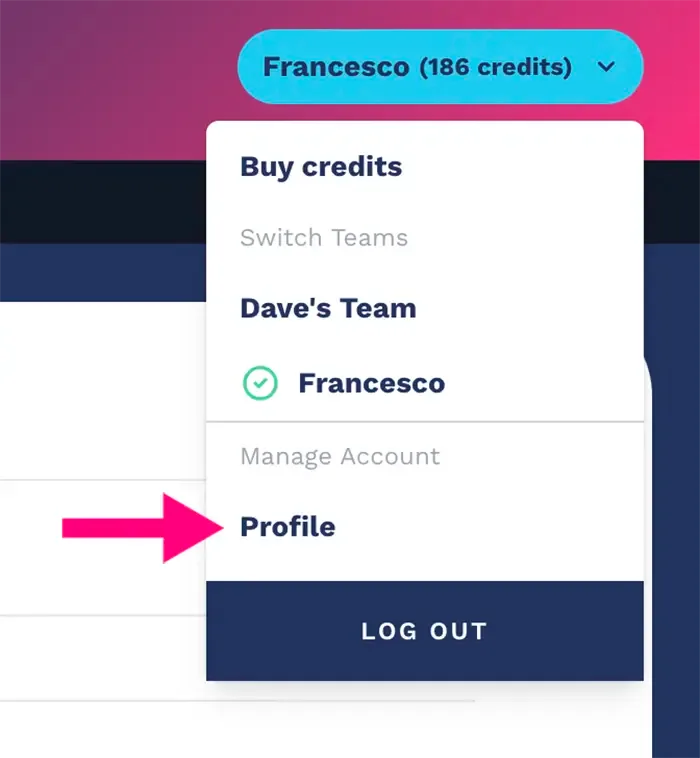
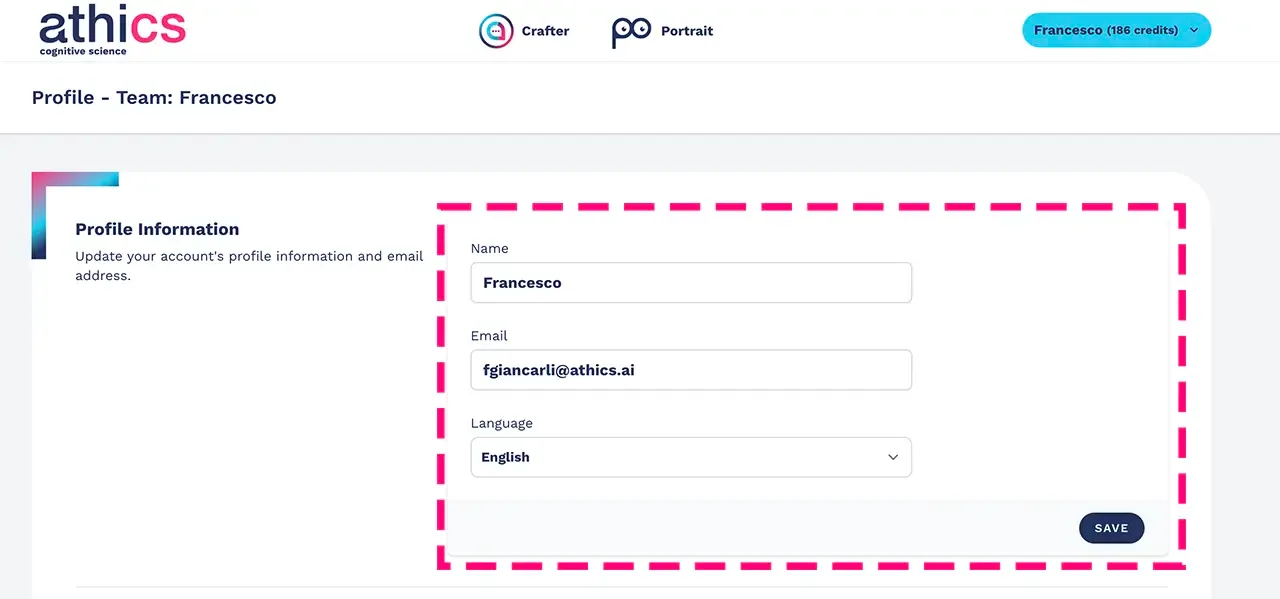
Once you have done this, you will be directed to the Athics account control page. From there, you can update your profile details, such as your name, email address, communication preferences and more.
At the top of the page you can change your name, your email and the language used by the platform, as shown in the screenshot below:
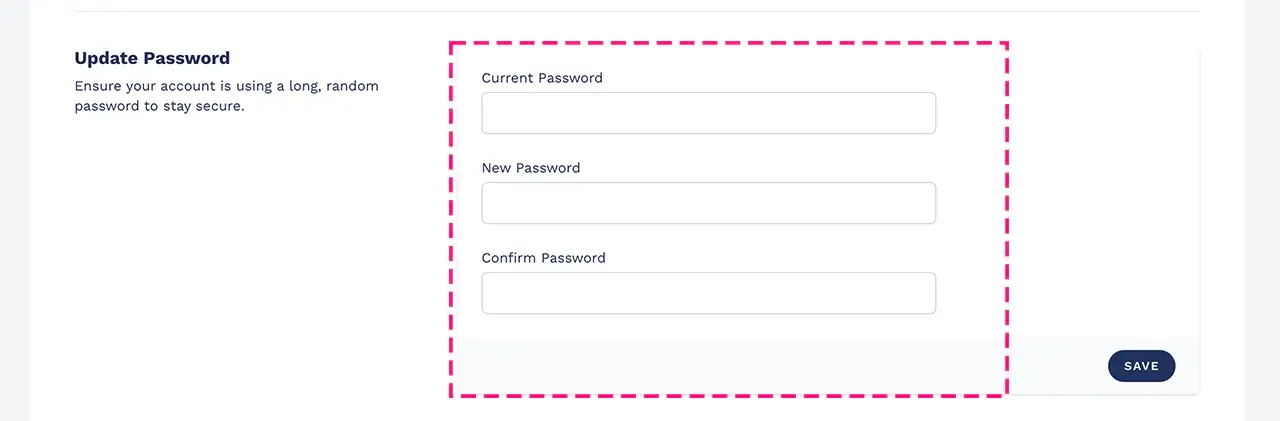
You will be able to update your password:
Enable two-factor authentication:
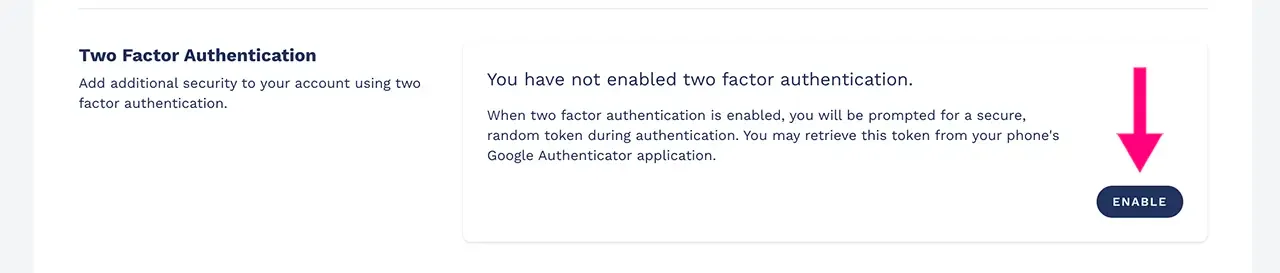
NB: when two-factor authentication is enabled, you will be asked for a random, secure token during authentication. You can retrieve this token from the Google Authenticator application on your phone.
At any time, you can check the active login sessions of the Portrait platform on other devices:
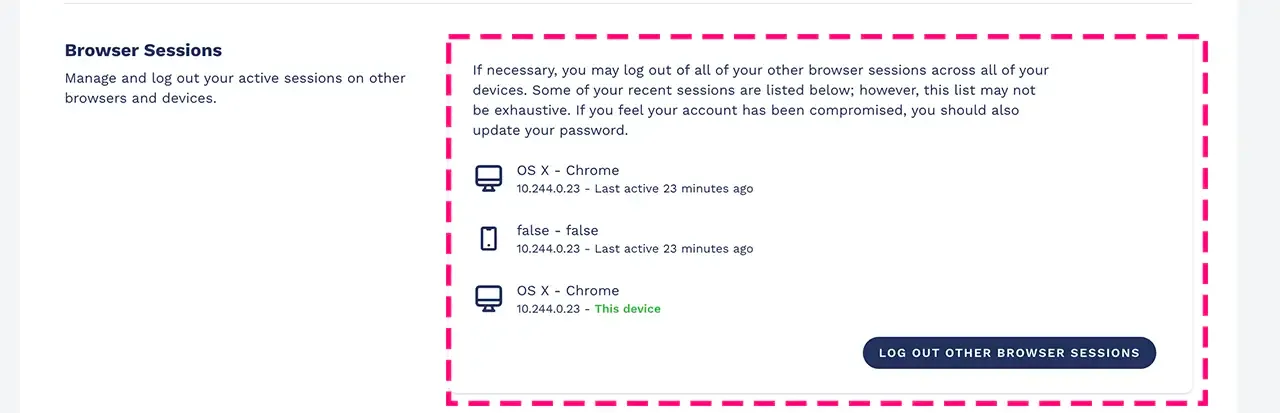
NB: if necessary, you can log out of all other browser sessions on all your devices. If you believe your account may have been compromised, you should also update your password.
Finally, if needed, you can delete your Portrait user profile.
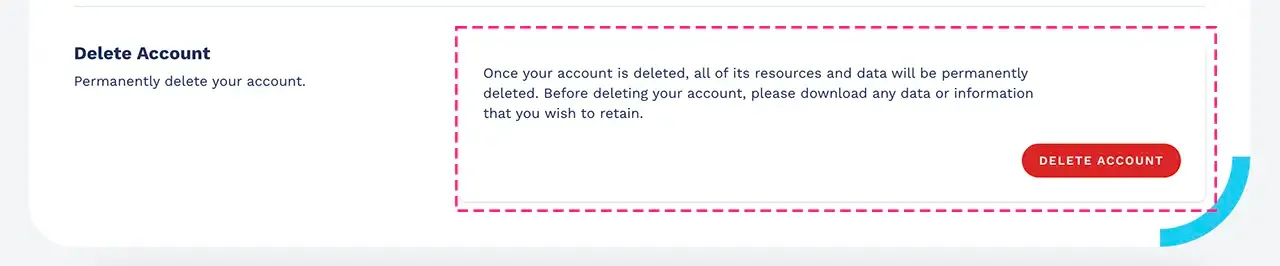
NB: once your account has been deleted, all its resources and data will be permanently removed. Before deleting it, download any data or information you wish to keep.