User profile
Portrait Team Settings — Portrait Documentation
To access the Team settings for psychometric profiling, follow these steps: first, click on the button with your name in the top right corner of the interface. Once located, click on it to open a drop-down menu.

Within this menu, search for and select the team or profile settings option. When the select list appears, click on "profile":
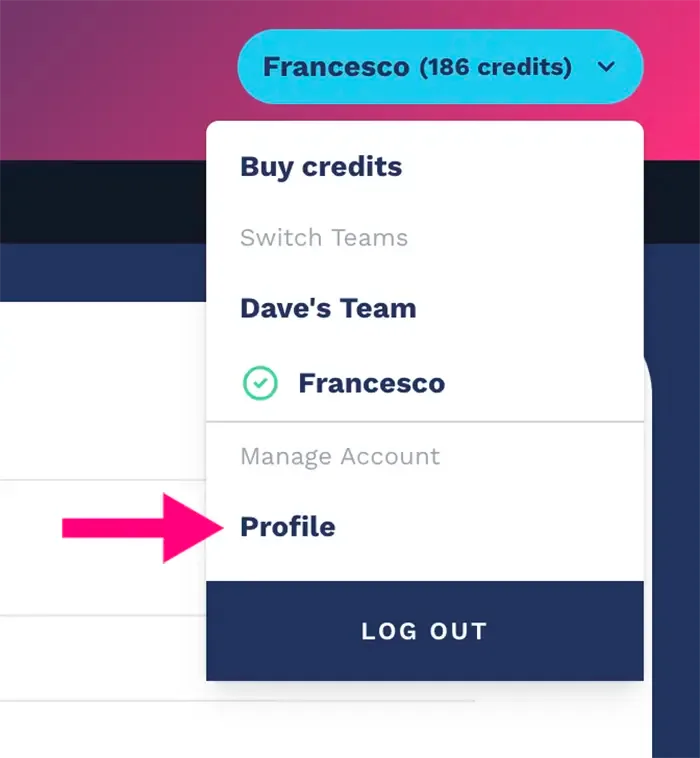
Once there, you will be able to explore and customize the settings based on your specific preferences and needs for your team's psychometric profiling. This process will allow you to optimize the use of resources and improve collaboration within the group.
From the Athics account page, click on "team settings":
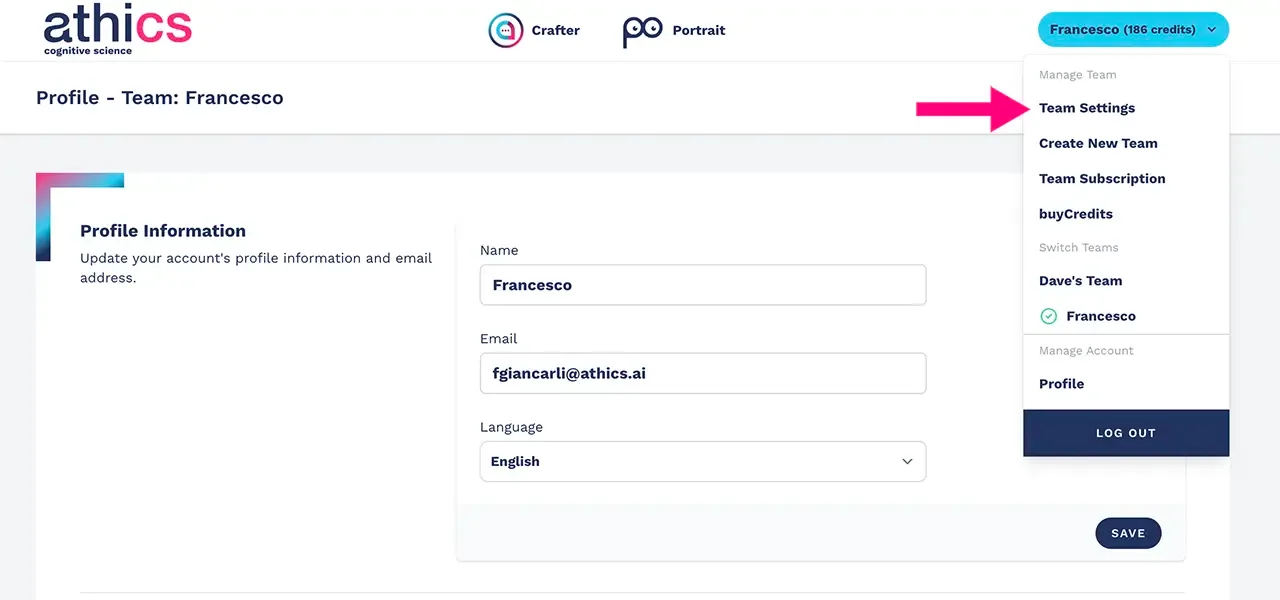
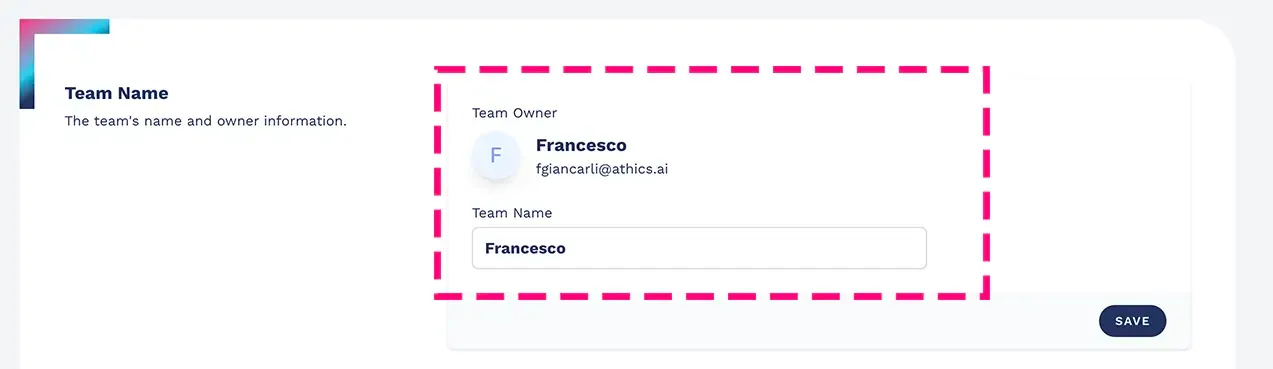
At this point the psychometric profiling team settings page will open, where you can change the team name and see the team owner information:
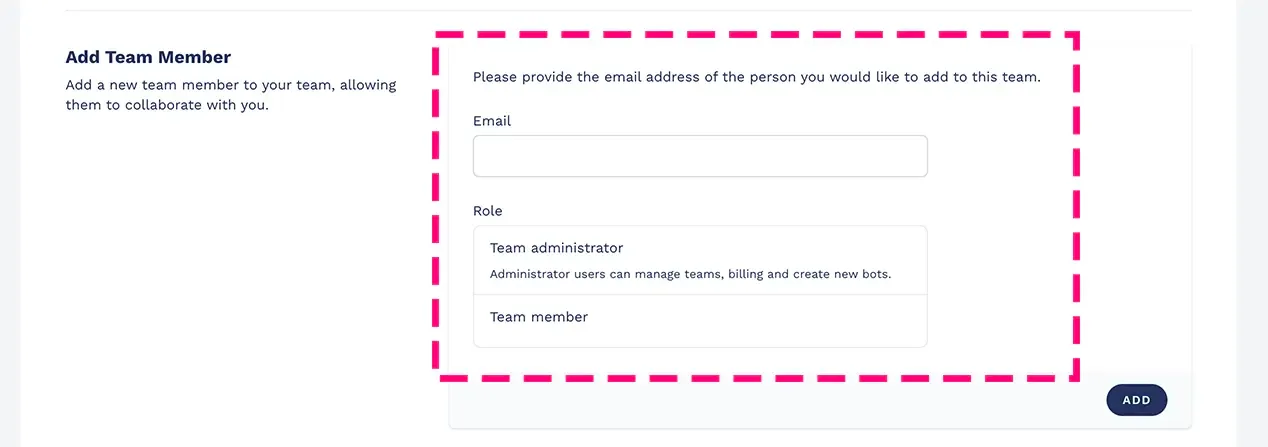
Add other members to your team and assign them the correct permissions to let them collaborate with you (provide the email address of the person you want to add to the team):
The platform will notify you of all invitations not yet accepted, with the option to cancel the invitation, as shown in the screenshot:

While the person who receives the invitation will find a notification on their profile, as shown in the screenshot:
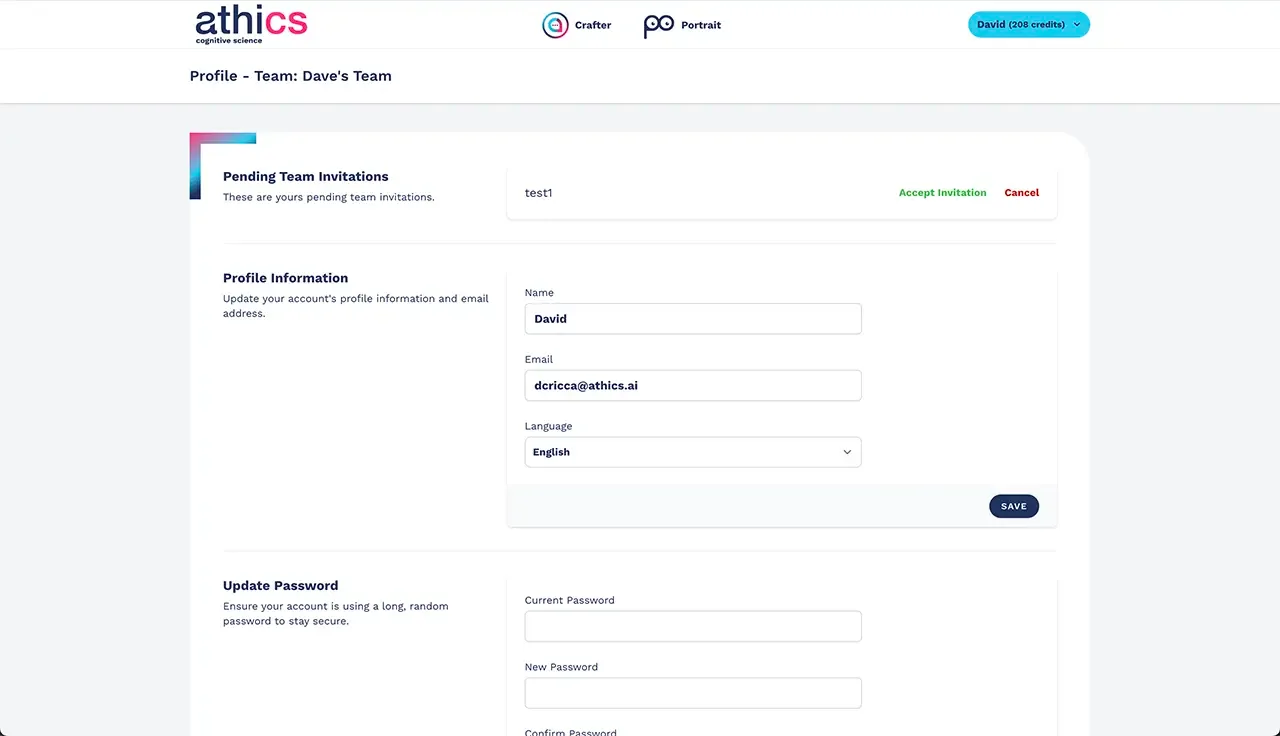
As soon as they click the "accept invitation" button, you will be able to work together on the same team.
NB: admin users can manage teams, billing and create new bots.
Check all the people who are part of your profiling team:
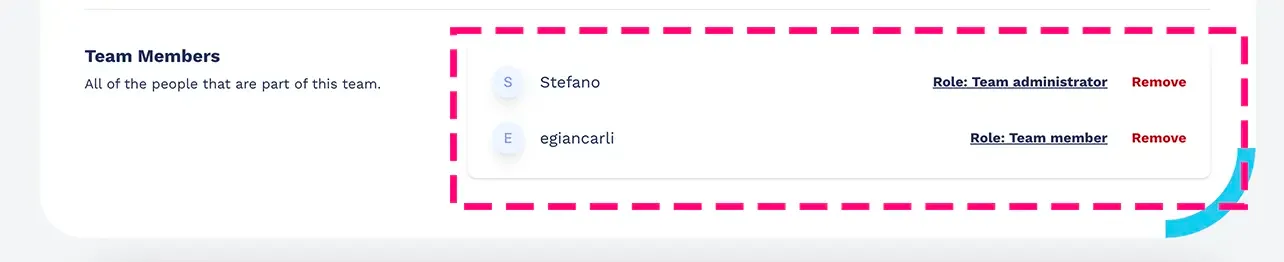
NB: use the "Role" button to change the permissions of users in your team, or click the "Remove" button to delete a user from your team.